


Traveling abroad? Don’t let your iPhone 13 turn into a glorified paperweight! Roaming is your ticket to staying connected while exploring new horizons. Whether you’re snapping selfies at the Eiffel Tower or navigating the bustling streets of Tokyo, enabling roaming can make all the difference.
Understanding Roaming on iPhone 13
Roaming enhances connectivity for iPhone 13 users when traveling internationally. Staying connected abroad becomes straightforward once roaming is activated.
What Is Roaming?
Roaming allows a mobile device to access networks outside its home carrier’s coverage area. This feature enables users to send texts, make calls, and use mobile data while outside their home country. Specific agreements between carriers facilitate this service, allowing phones to connect to local networks. Most smartphones, including the iPhone 13, support multiple types of roaming, such as voice, data, and SMS. Understanding these aspects ensures better management of mobile connectivity when traveling.
When to Use Roaming
Activate roaming when traveling to countries without local SIM options. This feature proves essential for urgent calls or accessing data while navigating unfamiliar cities. In situations where Wi-Fi access is limited or unreliable, roaming becomes crucial. Verify roaming charges with the home carrier before traveling to avoid unexpected fees. Some situations might necessitate turning off data roaming while maintaining the ability to receive calls and texts. Making informed decisions enhances the travel experience with the iPhone 13.
Steps to Enable Roaming
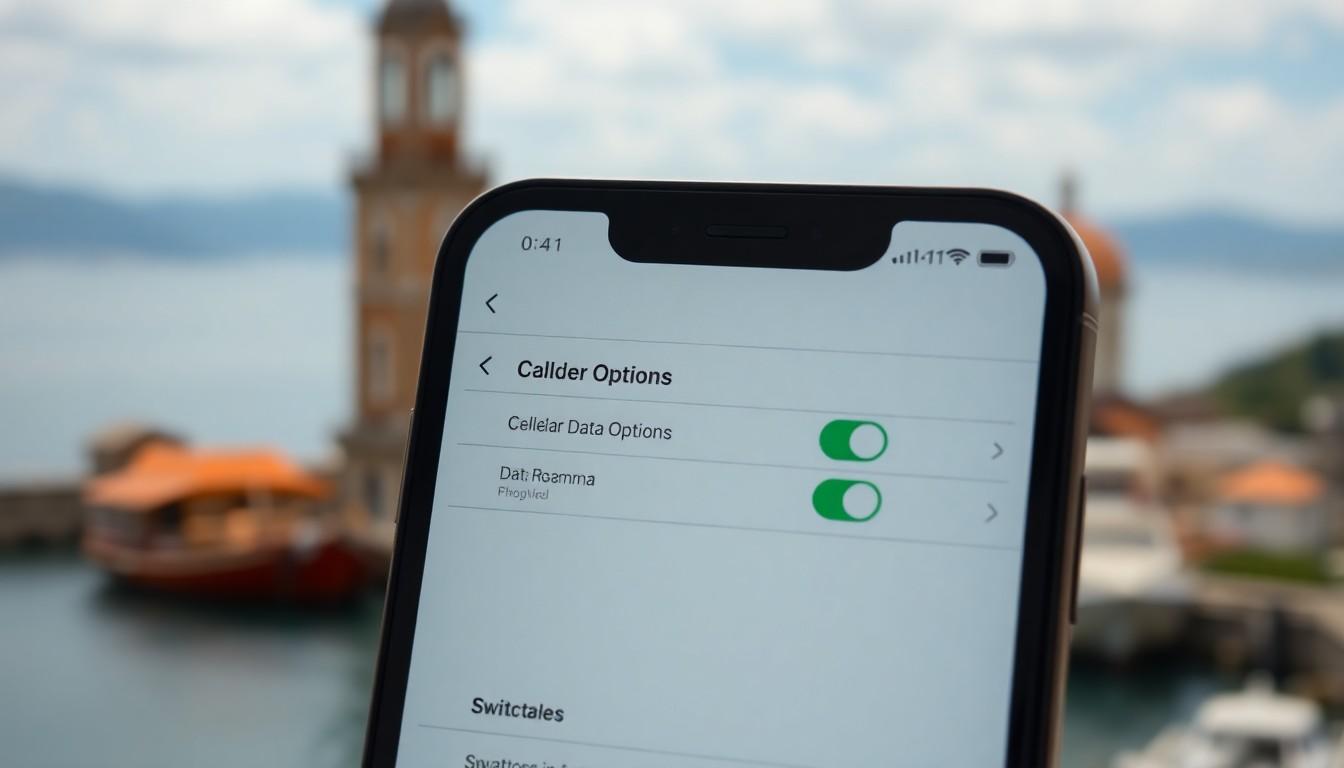
Enabling roaming on the iPhone 13 ensures connectivity while traveling abroad. These steps provide guidance on accessing the necessary settings.
Accessing Settings
Begin by locating the Settings app on the iPhone 13. Tap on the Settings icon to open the menu. Select Cellular to access cellular settings. From there, choose Cellular Data Options. This section contains various options regarding cellular connectivity for traveling abroad. Look for Enable LTE, Data Roaming, and other related settings. Each option allows adjustments specific to roaming and general data usage.
Turning On Data Roaming
Data Roaming allows users to access mobile data services while abroad. Within Cellular Data Options, find the switch labeled Data Roaming. Toggle this switch to the green position, indicating activation. Confirm any prompts that may appear, ensuring that roaming is enabled. It’s essential to keep in mind potential charges from the home carrier related to international use. Travelers should also verify roaming agreements to avoid unexpected fees during their trip.
Troubleshooting Roaming Issues
Encountering roaming issues on an iPhone 13 can disrupt connectivity while traveling. Users can troubleshoot common problems to restore service efficiently.
Common Technical Problems
Connectivity might fail due to forgotten settings. Check that Data Roaming toggles on within Cellular Data Options. In some cases, improper network selection hinders access. Manually select a local carrier if automatic selection doesn’t work. Software glitches occasionally arise; restarting the device often resolves these issues. Additionally, ensure that the iPhone 13’s software is up to date, as outdated versions can affect roaming capabilities. Special attention to data usage limits helps avoid unexpected disconnections.
Contacting Your Carrier
When persistent issues occur, contacting the home carrier often provides clarity. Representatives can confirm roaming agreements and ensure the service is enabled correctly. It’s vital to inquire about potential roaming charges and ask about partner networks available in the travel destination. Many carriers offer dedicated travel support lines. Utilizing these resources allows users to troubleshoot in real-time and resolve issues more effectively. Unresolved problems can lead to frustrating travel experiences, and direct communication with the carrier remains essential for a hassle-free connection.
Tips for Using Roaming Wisely
Utilizing roaming wisely on an iPhone 13 enhances the travel experience while preventing unexpected charges. Smart strategies can make roaming more efficient, ensuring users stay connected without overspending.
Monitoring Data Usage
Monitoring data usage is essential when roaming internationally. Track data consumption regularly to avoid exceeding limits set by the home carrier. Use apps that provide insights into data usage, or review settings on the iPhone 13 for real-time statistics. Understanding how much data is consumed daily helps in making informed decisions about usage while abroad. Users can also disable background data for apps that may consume unnecessary data when traveling, keeping within the planned budget.
Setting Up Alerts
Setting up alerts significantly aids in managing mobile data while roaming. Many carriers offer notification services that inform users when data usage approaches their set limits. Activating these alerts helps users stay aware of their consumption patterns. Additionally, configuring alerts for international roaming charges adds another layer of protection against unexpected fees. Check with the home carrier to understand the process for enabling these features, ensuring a hassle-free travel experience without surprises on the bill.
Conclusion
Enabling roaming on the iPhone 13 is essential for staying connected while traveling. It ensures users can make calls send texts and access mobile data even when outside their home carrier’s coverage area. By following the outlined steps and being mindful of potential charges users can enjoy a seamless experience abroad.
Monitoring data usage and setting alerts will help avoid unexpected fees. If issues arise contacting the home carrier for assistance can provide clarity and support. With the right preparations travelers can navigate new destinations confidently while keeping in touch with loved ones.


